Like any other smart phones, you may accidentally lose the access to the galaxy s6 or s6 edge, for example, the mobile lost/stolen, phone damaged/messed up, or you just mistakenly delete some important files(sms, contacts, photos, call logs, etc.), even worse, sometimes the precious data lost without realizing it. To avoid the disaster, you may need to backup & restore galaxy s6/s6 edge. In this way, you can get some files back from the backup at least.
This post gives solutions to recover and backup data from Galaxy s6,s6 edge with ease. Read on the detailed steps:Part 1. Transfer, Backup and Restore Files from Galaxy S6 to PC/Mac with Smart switch
Thanks to the great data transfer and backup application developed by Samsung - Smart switch. It offers the best solution to backup and transfer contacts, photos, music, videos, messages, notes, memos, calendars and more between Samsung to PC or mac.
Step 1. Get Samsung Smart switch from www.samsung.com/
You can download the desktop version(Mac/Windows) and mobile version as your own choice. The following steps is based on the desktop one.
Step 2. Start Samsung Smart Switch on Computer.
After you have downloaded the program, simply follow its installation wizard to install it on your pc/mac. Then double click its icon on desktop to launch it.
Step 3. Backup/Restore Files on Galaxy S6, S6 Edge.
As the screenshot you can see, when the software is started, 3 options is available for you to choose - “Backup”, “Restore”, “Outlook Sync”. You can click the corresponding option to do the Samsung galaxy s6 backup or restore.
Part 2. Backup and Restore S6, S6 Edge with Samsung Backup App like Android Manager
In this part, a great Samsung smart switch alternative is recommended which named Android Manger. It performs well on backing up and recovering lost files on Samsung Galaxy S6, S6 edge. This tool is powerful enough to backup contacts, sms, photos, audios, videos, as well as apps and WhatsApp messages. Here is the detailed guide:
Step 1. Get the Android Manager
The program has two desktop versions: Mac version and Windows version. You can download the one you need. Also, you can get the tool at popular download site like cnet and softonic.
Step 2. Run Android Manger.
Connect your Galaxy S6/S6 edge to PC/Mac, then run it to get started. On the new window, click “Backup Your Phone” panel. (Note: if you have backed up your phone with android manger before and need to restore data, then click “from backup” on the right tab to continue)
Step 3. Select the content to Backup/Restore
After you phone identified by the program, the “Backup Now”(“Restore Now”) tab will be clickable. Select the specified files and click the blue button. When the process is done, you will get a pop-up message.Tip: The Android Manager also provides an option that can directly recover data from Samsung Galaxy S6/S6 edge without needing of backup files: Launch the software -> click “without backup” on the “Restore Data” panel, then follow its guide.
Dear Software,
I was attempting to transfer nearly 2,500 photos from my Galaxy s6 to my PC. Rather than move everything at once, I would download about 100 photos at a time, save them on my computer, delete them from the phone, and go on to the next batch.
During one of these "deletes," ALL of my photos were somehow deleted from the phone, including the over 2,000 that I hadn't yet been able to transfer to my PC. I have no idea how or why this happened, but it seemed to coincide with the online browser becoming unresponsive - seems to have been some kind of glitch. The SD card has suddenly gone from showing 3.9/7 GB full to showing 116.5 MB full - those photos were pretty much all I had on the phone.
How can I recover these photos from SD card? Some of them are quite important to me. Please help. -Drive Paramedic
This is a latter from one of our customers. I think losing files from android SD card is a common issue during the process of transferring. I guess Drive is not the only one who encountered this. Don’t worry, there are plenty of ways to examine it ans see if any of the data is recoverable. With right tools, good care, and a little time, it is possible to restore the lost files on your Android SD card. This post will guide you get the way to do android SD card recovery and also some tips to fix a dead SD card.
How to Recover Deleted /Lost Files from SD Card Android
Step 1: Assemble Your Tools and Examine The SD Card’s Condition
- Connect the android to computer to make sure the SD card can be detected by computer. you may need some kind of USB cable that can help mount the card into and connect to computer easily. If the you can access the SD card on PC/Mac, then we can proceed to the next step.
- SD card just dead and cannot be identified? Try alternative SD card reader to see if it can be connected to computer. Otherwise, take out the card out from your Android, then take a look at the drive itself (pin bent)to check if it is damaged in any way. If the SD card is too physically damaged to attempt recovery, you may have to do more drastic measures that I will get to later. If everything looks good and it can be connected to computer systems, we can proceed.
Step 2: Grab Android Recovery Software & Connect the SD Card
Before getting started, keeps your anti-virus and antimalware tools launched, just to avoid the unnecessary digital disaster. Once you have done that, it’s time to download and install Android SD Card Recovery app. Here are two top software we’d like to recommend:
- Android Recovery(Android Recovery Mac). This is a powerful data recovery software which is specially designed for android users to recover lost files like photos, videos, audios, contacts, call logs, SMS, WhatsApp etc. from both internal memory and SD card. Personally speaking, Android Recovery makes data recovery simple and easy.
- File Recovery. The best android recovery alternative tools is File Recovery, it is available for both windows version and Mac version, which helps you recover deleted/formatted/lost files, emails, photos, musics, videos, etc. from Android SD card as well as PC hard drive, external storage medium.
Note:Both tools can only exert themselves to recover files that haven't been overwritten by new content. Therefore, once you lost files, stop using the card and act fast.
Step 3: Pick Up the Phone and Call Professional Firms for Help
For the Android sd card which is physically damaged and has been overwritten, the software can do nothing with it. You can consider professional data recovery services to see what they can do for you. As I known, DriveSavers, OnTrack, and it offers this kind of service. I have had good experience with it for Gopro video recovery, the DriveSavers and OnTrack are well known and loved, both companies do a superb job at pulling data even off of drives, SD cards that have been overwritten, formatted, or even severely physically damaged.
Note:
- Be ready to get out your wallet for the deep recovery for your damaged android SD card. The service for data recovery still cannot make 100% garauntee. Is the data worth that much?
- Make sure the data is backed up locally and online regularly, so that you can save lots of time for the damn recovery job and money.Tips for Fixing a Dead Android SD Card
- Make sure the SD card is connected. Take the card out and put it back in. Then Restart to check if it can be connected.
- Put the card in another phone and try again.
- Scan the SD card for errors. On your computer, right-clicking on the SD card in the file manager, go to Properties > Tools > Error-checking > Check Now. Under Check disk options, select option “Automatically repair errors in the file system” , check box and click Start.
Is it possible to recover deleted images, videos on galaxy s (like s3|s4|s5|s6)?
Unlike iPhone, photos, videos stored on android devices are not permanently wiped when you delete them. The command of deletion will flag the pictures, videos as “Deleted”, the corresponding storage space marked as being available for new content. That’s to say, if you deleted important photos, videos on your android, they still exists unless you add new content to make the storage overwritten. Therefore, there are great possibilities that the deleted/lost photos, videos from Samsung galaxy s4/s5/s6/s6 edge(+) can be directly restored.
How to recover deleted pictures from galaxy s4/s5/s6
Option 1.Computer-based Samsung Photo Recovery Software
Given that you lost pics and videos without backups available. To directly recover deleted photos, video from your galaxy s6/s5/s4, you need to get an assistance from a Samsung photo recovery tool - Android Photo Recovery. This is a perfect program to directly recover files (like photos, videos, SMS, Whatsapp, call logs, contacts, etc.) on Samsung android phones and tablets.
What you will need:
A Samsung Photo Recovery tool
An USB Cable
Samsung device(galaxy s4/s5/s6)
Steps:
- Download and install Android Photo Recovery (Android Recovery Mac) on computer.
- Connect galaxy s4/s5/s6 to pc/mac.
- Select specified file type(photo type) to scan, or simply select “All”.
- Enable USB debugging to make the tool access, then click “Start” to scan.
- When the scanning process finishes, preview all recoverable photos and mark the want pics to restore.
Option 2.Retrieve Deleted Photos from Samsung Backup
If you did a backup with Samsung Kies for your precious photos before, then this is the detailed steps to recover photos, videos from galaxy s with Samsung switch.
What you will need:
A Backup with Samsung Switch
USB Cable
Samsung device(galaxy s4/s5/s6)
Steps:
- Connect your Samsung galaxy s4/s5/s6 to computer and then launch Samsung Kies.
- Tap “Back up/Restore” - > “Restore data”.
- Choose a backup files which your deleted photos, videos stored.
- Mark the check-box next to “Photos” and “Videos” then hit “Recover” button.
That's it. If you have any problems with Samsung galaxy s4/s5/s6 photos, videos recovery, you can feel free to leave comments below to get the future help.
Deletion happens all the time when we are using the android device. Sometimes you didn't mean to delete that last one, you may just need to delete the duplicated pictures. Even worse, you’ve accidentally delete a whole album of great photos. It is really a disaster that precious photos just lost by the damn mistake.
Thankfully, when it comes to technology it is possible to get ways to directly recover deleted photos from android without needing of backup files. Whether your android photos deleted an hour ago or a few months ago, as long as the photos not be overwritten, you still have the chance to get the deleted photos back from your android device (like Samsung|HTC|Sony|Motorola|LG etc.). This guide will help you do android photo recovery on Mac step by step.
Before getting started:
The first thing you should is is turn off Wi-Fi and data connection on your android phone. The photos are not actually deleted until new content has been written over them in the device's memory.
Given that you don't have backups for the deleted photos, you'll need the assistance from a third-party photo recovery for android application. The recovery process requires root privileges on your android to let the app be able to access your device to recover deleted picturess.How to recover deleted photos on Android
1.Get an Android Photo Recovery onto your computer. Though there are a great many of photo recovery for android available, but we’ve always had good result with Android Photo Recovery (Android Photo Recovery Mac). After you downloaded and installed it, simply launch the program and select “Multimedia” option or simply click "All" to continue. You'll see the screen below:
2.Connect your android device to your PC/Mac with an USB cable. Then you need to have USB debugging enabled on your device for accessing android photos. If you have done this, skip this step.
3.Once Android Photo Recovery has made the connection to your android device the program will be able to enter the scanning process. As the screen shows below, tap “Start” to scan delete photos.
4.Wait a while for the scanning. There will be reboots and possibly some screen popping up on your device, just let the android photo recovery do its thing. once it is done, all the recoverable photos will be displayed on scanning result on the left side.
5.That's it, you can mark the check-box for the photos that you want to recover. Then simply save the photos to your PC/Mac by hitting “Recover” and you’ve gotten.
“I accidentally deleted the “Camera” folder on my HTC One M9, all photos and video were gone, some of them are very important for me. I really need to get them back, but I don’t have any backups. Is it possible to recover deleted photos, videos from HTC One M9 directly? Anybody can help me? Thanks in advance.” Joe
A member from androidforums.com asked the above question, I think Joe is not the only one who encountered the accident deletion and need to recover deleted photos, videos from HTC One M9. Actually, it is possible to get the lost files back only if the lost data not be overwritten. But you have to get help from a 3-rd party HTC Data Recovery software to restore HTC One M data if you have no backups.
Here, Android Phone Recovery (Android data recovery for mac) is highly recommended tool. It is the most popular data recovery software among HTC users as well as other android users to recover deleted data. This program is able to recover deleted/lost photos, videos from HTC one M9/M8/M7, as well as can restore contacts, text messages, musics, Whatsapp messages, and other files from HTC One M9/M8/M7 to PC/Mac.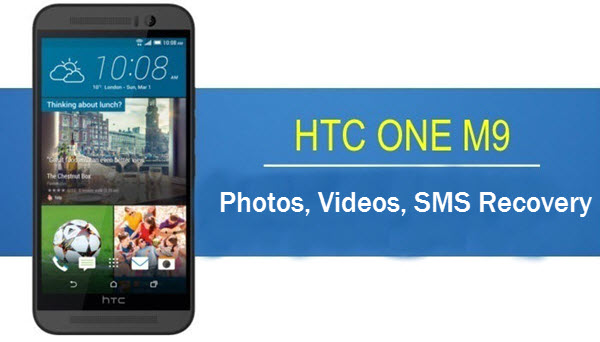
Steps to Recover Deleted Photos, Videos from HTC One M9/M8/M7
- Step 1. Download and install Android Phone Recovery(Android recovery mac) on your PC/Mac
- Step 2. Connect your HTC One M9/M8/M7 to computer with the corresponding USB cable, then launch the android recovery software to start recovery process.
- Step 3. Choose specified file types to scan. If you are going to recover photos, video and audio files from HTC one, then simply click the middle panel “Multimedia”. If you need to recover the other files, choose the corresponding option.
- Step 4. Access and scan lost files on your HTC One phone. Once the program detects and access your phone, it will enter a window displays a “Start” button, simply click it to continue. (to let the program access, you have to set enable USB debugging on HTC firstly)
- Step 5. Preview and recover deleted photos, video from HTC One M9/M8/M7. It may take a while for the scanning process, once it is done, you can preview the recoverable photos and video one by one. Then mark the wanted files and tap “Recover” button to get them back.
That’s it. Hopefully at this point you have already been retrieved your lost photo and video. If not, it may due to:- 1.As the deleted files weren’t immediately destroyed on HTC one, they have been marked as unnecessary files to free up memory space for new content. That’s to say, the lost photos, videos were overwritten by new data you added later. That’s why we suggest you stop using your HTC phone once the files lost. Meanwhile, you’d better turn off the 3G/4G/Wifi connection to ovoid the automatic update and overwriting.
- 2.Photos and videos stored and deleted from the HTC One internal memory are hard to be recovered. Since the android system dropped USB mass storage to support internal storage for security issues. The software is hard to access phone internal memory. If you want to recover pics, video, audios from HTC One M9/M8/M7’s internal memory, you need to root your HTC one phone to make it accessible.
Tip: The best way to keep your precious photos, videos safe is regularly backup and save the files before you lost the data. You can simply copy them from your phone to computer, also, you can download an Android manager application to help you manager them on your computer.
When you switch a new phone, you may need to transfer SMS, MMS, contacts, pics, and call logs. Sometimes, the important files stored on your android phone just lost during the transferring. Thankfully, there is always good way to keep the data safe: Backup & restore SMS/MMS to computer.
Part 1. Backup Messages on Android to Computer
Making a backup for Android SMS/MMS is the first step. If you have a SD card on your android, then, you can simply export the messages to the card to copy and save them. The backup files can be seen on computer by plugging the card to your PC/Mac.
If you don’t have a card, that’s OK. An external backup application enables to do the job - Android Manager. This program is great to backup SMS/MMS from android devices, as well as photos, contacts, call history, apps data. Also, it is very simple to use:
- Get Android Manager, connect your android device to computer and run it on your computer.
- Tap “Backup Your Phone” on the left panel.
- Select “Text messages” and click “Backup Now” when the program identify your device.
- Save the text message to anywhere on your computer, when the backup process is done, you can view the files on computer anytime.
-That’s it, the messages is backed up in a few clicks.
Part 2. Recover Lost SMS/MMS from android with/without Backup
Option 1. If you lost some important SMS/MMS, and you did backup with Android manager before. Luckily, it is very easy and convenient to restore lost android messages with backup. You can simply connect your android phone to computer, run android manager, then navigate to “Restore Data” -> “from backup”-> “Restore Now”.
Option 2. In fact, Android manager is only capable of recovering SMS/MMS from android with backup files. What if you cannot find the lost messages you need to recover from the backup? then you have external option:
Connect the android device to your PC/Mac, and run android manger, then click “Restore Data” -> “without backup”, you will be navigated to a page related to android data recovery - Android Phone Recovery. This tool is specially dedicated to directly retrieve deleted/lost SMS/MMS from any android device(including Samsung, LG, HTC, Motorola, Sony, Huawei etc. Android phones & tablets). Just download the free trail of the android recovery software to try your luck. It allows you freely preview the recoverable files on android. For details about android phone recovery, you can read this article:
Android Phone Recovery: Directly Recover Data from Android
Sony Xperia Z5 News
According to the leaked news, the upcoming Sony Xperia Z5 could be launched in September in normal, compact and ultra models.
Z4 has not yet appeared , Z5 rumors and news has been spread out. Recently , according to Android Origin , the new Sony Xperia Z5 series will be launched in the second half of this year , including the Xperia Z5, Xperia Z5 Ultra ( bigger screen) and Xperia Z5 Compact. The three models will be designed in a new design. In addition to the redesigned exterior , the Sony Xperia Z5 series also comes with many improvements of performance. Xperia Z5 and XperiaZ5 Ultra will be equipped with Qualcomm Snapdragon 820 processor , fingerprint recognition, 2K screen , and 4GB RAM, the latest Sony sensor camera. However, according the leaked statement, Sony will not provide optical image stabilization feature for Xperia series.
Accidentally Deleted/Lost Files from Sony Xperia Z?
In this digital world, issues data loss happens a lot. Your precious data may lost when you are transferring files; the simple intentional/unintentional deletion, android update, rooting Xperia, ROM flash, factory reset your Sony Xperia Z etc. could let the file lost. Also, the device physical damaged or virus attack are also reasons make Sony data lost. What’s worse, some of Sony users lost their files without realizing it.
Thus, no matter which Sony phone your are using, you should take good care of your important files, even the Xperia Z5 users with no exception. When you accidentally lost data from Sony, there is nothing to worry about either. Here gives some tips for you:- Regularly backup your important info on your Sony Xperia Z. So that you can check the available backups once you lost files. However, you should know that the automatic backup could overwritten your recent files which you didn’t backup. To avoid that, you can use 3-rd backup apps, like Android manager is a good option to do the job.
- If you lost files without any available backups, you have to get help from android recovery tools to directly recover data from Sony Xperia Z. For choosing correct android recovery tool, you can refer to this article: android recovery software
- Stop using your phone and turn off the WiFi and 3G/4G connection to avoid automatic updates and data overwriting. If you didn't know about it, that's OK, try your luck, the lost may not be overwritten.
Recover Data on Sony Xperia Z2/Z3/Z3+ with Android Recovery Tool
From this part, a highly recommended android recovery tool named Android Phone Recovery is needed. I have tried with this program, it did work on restoring data(including text messages, contacts, videos, photos, WhatsApp messages, call history and other files) from Sony Zperia Z series. - Get the android phone recovery. You can search “Android Phone Recovery” on Google, it ranks 1st. Simply go to its page, download and install it on your PC/Mac.
- Connect Sony Xperia Z device to computer with USB cable.
- Analyze Sony device and click “start” to scan. (Tip: you have to enable USB debugging on Sony Xperia Z to let the program access. )
- Preview and recover deleted files from Sony Xperia Z2/Z3/Z3+/Z5.
Basically, as long as the deleted data not be overwritten, the android data recovery program can help you get them back.